Art time in an elementary classroom rarely looks the same twice. One table is crowded around a directed-drawing lesson on the screen, another is colouring on tablets, and a third is finishing a paper craft that started as a digital sketch. The tools below cover all three moments: free drawing programs, step-by-step video lessons, and places to share finished work.
We checked each tool on its own official site on November 5, 2026. Five of the eight cost nothing to start, and two of those are completely free with no paid tier at all. The list mixes simple programs built for young children with professional-grade apps that older students can grow into, and it includes two ways to share finished work with families.
We picked tools that fit PreK–6 classrooms and homeschool families: no account needed where possible, tools that work on the devices schools actually have, and free options first. No tool here was paid to appear, and every one of them has something a teacher can use this week.
Key takeaways
- Best free starting point: Tux Paint, free with no ads and no account, made for ages 3 to 12.
- Best for guided lessons: Art for Kids Hub, with thousands of free step-by-step drawing lessons to project.
- Best for tablets in PreK–2: Crayola Create & Play, built for ages 3 to 8 with realistic Crayola tools.
- Best for sharing work: Artsonia, a free gallery where families can view, comment on and order keepsakes of student art.
- Best for older students: Sketchbook and ibisPaint, with layers, blend modes and professional brushes — and ibisPaint Edu is free for schools.
Quick comparison
| # | Tool | Best for | Grades / audience | Pricing | Free plan |
|---|---|---|---|---|---|
| 1 | a free drawing program for young kids | Ages 3–12 | Free | Yes | |
| 2 | step-by-step drawing lessons to project | Kids, all ages | Freemium | Yes | |
| 3 | colouring and drawing on tablets for PreK–2 | Ages 3–8 | Freemium | Trial only | |
| 4 | free drawing in a browser, no install | All ages | Free | Yes | |
| 5 | a simple digital makerspace for posters | All ages | Paid | No | |
| 6 | publishing student art for families | All grades | Free | Yes | |
| 7 | a free advanced app with a school version | All ages | Freemium | Yes | |
| 8 | older students ready for pro tools | All ages | Free + paid | Yes |
Make a tool for teachers?
Built something teachers love? We keep these guides fresh, so send us a new tool, updated pricing or a featured spot request.
Request a listingThe 8 best picks
- Pricing
- Free
- Free plan
- Yes
- Grades / audience
- Ages 3–12
Tux Paint is a free, open-source drawing program made for children ages 3 to 12, and it is used in schools around the world as a computer literacy drawing activity. Children get a blank canvas and a set of simple drawing tools, with fun sound effects and a cartoon penguin mascot who guides them as they work. A teacher can install it on classroom computers once and have a drawing station that works with no account and no internet connection.
What we like
- A blank canvas with simple drawing tools, stamps and special effects built for young children
- Fun sound effects and an encouraging cartoon mascot who guides children as they draw
- Runs on Windows, macOS, Linux and Android, and works without an internet connection
- Free of cost and free of advertisements, as open-source software
Watch out for
- Needs installing on each device — there is no browser version
- The simple interface suits young children best; older students may outgrow it quickly
Pricing: Free — no cost and no advertisements.
- Pricing
- Freemium
- Free plan
- Yes
- Grades / audience
- Kids, all ages
Art for Kids Hub is a family-run site of step-by-step drawing lessons, made by a family who draws together on camera. A teacher picks a lesson, projects it, and the class draws along — animals, characters, vehicles, food with silly faces, and themed projects for every holiday and season. The free lessons live on YouTube and on the website, where they can be searched by topic and browsed without YouTube distractions.
What we like
- Thousands of free step-by-step drawing lessons, with new videos every week
- Lessons searchable by topic on the website, with curated playlists by theme and season
- A family draws along on camera, so students always have a friendly face to follow
- A membership option adds an ad-free space, exclusive lessons and offline downloads
Watch out for
- Free lessons carry ads on YouTube and on the website
- The membership is the only ad-free route, at $5.99/month after a 7-day free trial
Pricing: Free lessons on YouTube and the website, supported by ads; the ArtForKidsHub.tv membership starts at $5.99/month with a 7-day free trial.
Crayola Create & Play
Best for: colouring and drawing on tablets for PreK–2
- Pricing
- Freemium
- Free plan
- Trial only
- Grades / audience
- Ages 3–8
Crayola Create & Play is Crayola's official app for kids ages 3 to 8, bringing colouring, drawing, educational games and imaginative play together in one place. Children use realistic Crayola crayons and markers, and the activities build early skills — letters, numbers, shapes, colours, coding logic and fine motor skills — with new activities added every month. It also includes a digital Smithsonian Museum built with Smithsonian experts, and many activities work offline, which makes it a good fit for travel and car rides.
What we like
- Realistic Crayola crayons, markers and other art tools that behave like the real thing
- STEAM activities covering early spelling, reading, math, coding logic and fine motor skills
- A digital Smithsonian Museum with science, history and art content built with Smithsonian experts
- One subscription works on up to 5 devices, and many activities work without wifi
Watch out for
- Full access needs a paid subscription after the 7-day free trial
- Aimed at ages 3–8 — not a fit for older elementary art
Pricing: Free to download with a 7-day free trial; full access is a subscription — check the price shown in the app, as trial offers change.
- Pricing
- Free
- Free plan
- Yes
- Grades / audience
- All ages
Kleki is a free, open-source paint tool that runs entirely in a browser tab — no download, no account, no paid tier. Students open the site and draw with brushes, layers and filters, with pressure-sensitive pen support for tablets. A photo can be dragged in as a layer to paint over or trace, and finished work exports as a flat PNG or JPG, or as a layered PSD that opens in other art programs.
What we like
- Runs in any browser with no installation and no account needed
- Layers with blend modes, plus fill, text, shape and filter tools
- Pressure-sensitive brush support for pen tablets and iPads
- Exports a flat PNG or JPG, or a layered PSD for other art programs
Watch out for
- Browser-only — it needs an internet connection to load
- Save work before closing the tab; it does not autosave
Pricing: Free — no account, no watermark on saved work, and no paid tier.
- Pricing
- Paid
- Free plan
- No
- Grades / audience
- All ages
Sketchpad is a digital makerspace from Sketch.IO that works on Mac, Windows, Android and iOS. Students draw, edit photos and design posters, cards and comic characters in one clean workspace. It comes with 18 brushes, hundreds of stamps, thousands of open-source clipart images, 14 shapes and hundreds of Google fonts, so a class can make a poster, a book cover or a comic strip without leaving the app.
What we like
- 18 brushes, including tile, mirror, crayon and calligraphy styles
- Thousands of open-source clipart images and hundreds of stamps to decorate artwork
- 14 shapes with fill, outline, gradient and pattern options
- Hundreds of Google fonts built in, with drag-and-drop photo editing
Watch out for
- Paid — $4.99 per the official site, so budget for a class set
- The web app opens in a browser, so try it there before buying the app version
Pricing: Sketchpad is listed at $4.99 for all devices on sketch.io.
- Pricing
- Free
- Free plan
- Yes
- Grades / audience
- All grades
Artsonia is an online gallery of student art portfolios, published by teachers and students from around the world. A teacher photographs finished work and publishes it to the class gallery, where parents and family can view it online, leave comments and order keepsakes featuring the artwork. The site is COPPA compliant and supports schools' FERPA compliance, and 20% of keepsake purchases is donated to the school's arts program.
What we like
- Online student art portfolios that families can view and comment on
- Families can order keepsakes featuring the artwork, with 20% donated to the school arts program
- COPPA compliant and reviewed for FERPA compliance through iKeepSafe
- Artist of the Week voting and school awards for publishing milestones
Watch out for
- Keepsakes are optional purchases for families
- Teachers need an account to publish student work
Pricing: Free for teachers and schools; families can buy optional keepsakes, with 20% donated to the school arts program.
- Pricing
- Freemium
- Free plan
- Yes
- Grades / audience
- All ages
ibisPaint is a full-featured drawing and animation app for phones and tablets, free to download with advertisements. It packs in layers with blend modes, vector tools, filters, fonts, 3D materials and animation, and it can record the drawing process as a time-lapse video. Schools can use ibisPaint Edu instead: almost all drawing functions free of charge, with no advertisements and no social features, so it is safe to use in class.
What we like
- Layers with blend modes, vector tools, filters and animation in the free app
- Records the drawing process as a time-lapse video students can share
- ibisPaint Edu gives schools almost all functions free, with no ads and no social features
- Works on iPhone, iPad, Android and Chromebook with Google Play
Watch out for
- Free version shows advertisements
- The consumer app's online gallery is a social feature — use ibisPaint Edu in school
Pricing: The consumer app is free with ads; Prime Membership is about $4.49/month or about $27.99/year, and ibisPaint Edu is free for schools.
- Pricing
- Free + paid
- Free plan
- Yes
- Grades / audience
- All ages
Sketchbook is a professional-grade drawing app that aims to feel like drawing on paper — brushes and pens behave like their physical counterparts, and the interface stays clean and out of the way. It offers highly customisable brushes, guides, rulers and stroke tools, plus layers with a full set of blend modes for building up a drawing. The mobile app is a free download, while Sketchbook Pro for Mac and Windows is a separate paid purchase.
What we like
- Brushes and pens that behave like their physical counterparts
- Highly customisable brushes with guides, rulers and stroke tools
- Layers with a full set of blend modes for building up drawings
- A clean, unobtrusive interface that tucks tools away until needed
Watch out for
- The Mac and Windows Pro version is a separate paid purchase
- Professional-grade — the learning curve is steeper than the kids' tools here
Pricing: Free to download on Android and iOS; Sketchbook Pro for Mac and Windows is a paid purchase, with no price listed on the official site.
How we chose
We started from tools PreK–6 teachers actually use and checked every one against its official website, pricing page and feature pages on November 5, 2026. We kept tools that fit elementary classrooms, noted whether a free plan exists, and wrote down honest limitations next to the strengths. Nobody paid to be included, and we don't use affiliate links on this page.
- Fit for PreK–6 classrooms, special education or homeschool
- Clear information on the official site about what the tool does and who it is for
- Free plan or free-for-teachers option noted where one exists
- Still active and maintained, with rebrands noted
How to choose the right tool
Match the tool to the age in front of you. Tux Paint and Crayola Create & Play are built for the youngest artists, with big simple tools and a friendly guide. Kleki and Sketchpad suit the middle grades, and Sketchbook and ibisPaint are the ones for older students who are ready for layers, blend modes and professional brushes.
Check the device before the lesson. Tux Paint needs installing on a computer or tablet, Kleki and Sketchpad open in a browser, and ibisPaint and Sketchbook live on phones and tablets. If the class shares one set of Chromebooks, a browser tool saves a setup afternoon.
Try the free tools before spending anything. Tux Paint, Kleki and Artsonia cost nothing, Art for Kids Hub has thousands of free lessons, and ibisPaint and Sketchbook both have free versions. Use a free tool for a unit first, then decide whether a paid app adds enough to justify the cost.
Think about what happens to the finished work. If the class only needs to draw and save, Kleki or Sketchbook is enough. If families should see the work, Artsonia publishes it to a gallery they can visit and comment on. If the work should end up on paper, pair the screen with a directed-drawing printable from the box below.
Watch the ads and accounts. The free versions of Art for Kids Hub, Crayola Create & Play and ibisPaint are ad-supported or trial-based, and Artsonia needs a teacher account to publish. Check your school's rules on accounts, ads and publishing student work before planning a lesson around any of them.
Best pick by situation
- You need a free drawing program for the computer lab: Tux Paint — free, no ads, no account, made for ages 3–12
- You want a step-by-step lesson to project for the whole class: Art for Kids Hub — a family draws along on camera, lesson by lesson
- Your PreK class has tablets and short attention spans: Crayola Create & Play — built for ages 3–8 with simple tools and games
- You want students drawing in a browser with no install: Kleki — free paint tool that opens in any browser
- You want families to see finished student art: Artsonia — free online galleries with family comments
- Your older students are ready for layers and pro brushes: Sketchbook — professional-grade brushes, layers and blend modes
Pair it with printables
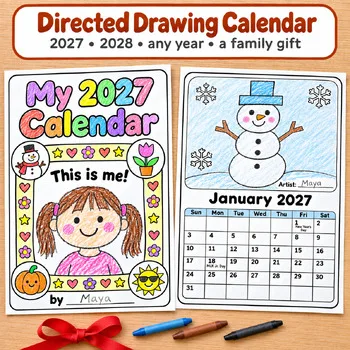
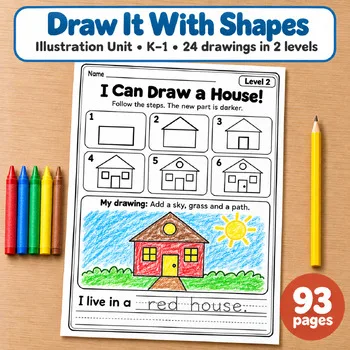
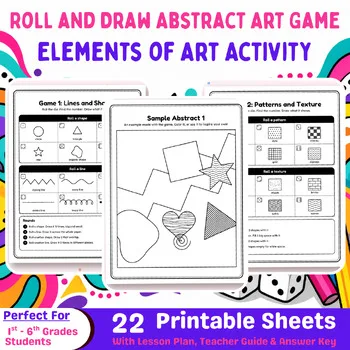
These printables from our store pair with the apps above — directed-drawing lessons and a roll-and-draw art game that turn screen drawing into hands-on work.
Frequently asked questions
What is the best free drawing app for kids?
Tux Paint is the strongest free starting point for young children — free, no ads, no account, and made for ages 3 to 12. For a browser with no install, Kleki is the free pick, and for older students the free versions of ibisPaint and Sketchbook go further.
Do these apps work on Chromebooks?
Kleki and Sketchpad run in a browser, so they work on Chromebooks with no install. Tux Paint runs on Android-capable ChromeOS devices, and ibisPaint works on Chromebooks with Google Play installed. Art for Kids Hub lessons play in any browser.
Which app is best for PreK and kindergarten?
Crayola Create & Play is built for ages 3 to 8, with big simple tools and early-learning activities. Tux Paint is the free alternative, made for ages 3 to 12 with a mascot who guides children as they draw.
Can students share or print their finished work?
Yes. Artsonia is built for sharing — it publishes student work to an online gallery families can view and comment on. Kleki exports finished work as a PNG, JPG or layered PSD, and ibisPaint can record the drawing process as a time-lapse video.
Do I need student accounts for these tools?
No, for most of them. Tux Paint and Kleki need no account at all. Artsonia needs a teacher account to publish work, and the paid apps need a purchase or subscription on each device, so check your school's sign-in rules first.
Make a tool for teachers?
Built something teachers love? We keep these guides fresh, so send us a new tool, updated pricing or a featured spot request.
Request a listingDisclosure: no tool on this page paid to be included and we don't earn commissions from these links. Featured placements, if we ever offer them, will be clearly labeled "Sponsored". Details were checked on each provider's official website on November 5, 2026 and can change.