Every teacher knows the moment: the whiteboard is full, the math problem is half-erased for the next one, and only one student at a time can hold the marker. The rest watches, and the erased work is gone. A digital whiteboard fixes the space problem first — the canvas never fills up — then the participation problem, because every student can write at once.
This list gathers eight boards that work in a real PreK–6 classroom, not just in an office. Some give every student their own board you can watch live, some record lessons so absent students can catch up, and some are free, open boards you can open in seconds. We checked each one on its official website on November 11, 2026, for a real classroom fit, honest pricing, and a free way to try it. Boards are ordered with the most classroom-ready picks first and the most business-like last.
Prices and free plans change, so treat the figures here as a starting point and check the tool's own site before you pay. Where a site did not state a price, we say so. A board free for a school is not always free for a family, so each entry's free-plan note says who the free offer covers.
Key takeaways
- Whiteboard.fi is the only pick built to watch every student's board live.
- Explain Everything records lessons; its free plan allows 3 projects and 3-minute videos.
- Canva Education and FigJam are free for K-12 teachers, premium access included.
- Excalidraw is free and open source, no account needed to start drawing.
- Microsoft Whiteboard is free for schools on Microsoft 365 A1.
Quick comparison
| # | Tool | Best for | Grades / audience | Pricing | Free plan |
|---|---|---|---|---|---|
| 1 | seeing every student's board | All grades | Freemium | Yes | |
| 2 | recording whiteboard lessons | All grades | Freemium | Yes | |
| 3 | daily classroom display board | All grades | Freemium | Yes | |
| 4 | teachers already using Canva | Kindergarten–12th grade | Freemium | Free for teachers | |
| 5 | schools already on Microsoft 365 | All grades | Free | Free for teachers | |
| 6 | a free Jamboard replacement | Kindergarten–12th grade | Freemium | Free for teachers | |
| 7 | quick hand-drawn diagrams | Upper elementary and up | Free | Yes | |
| 8 | big boards with templates | Upper elementary and up | Freemium | Yes |
Make a tool for teachers?
Built something teachers love? We keep these guides fresh, so send us a new tool, updated pricing or a featured spot request.
Request a listingThe 8 best picks
- Pricing
- Freemium
- Free plan
- Yes
- Grades / audience
- All grades
Whiteboard.fi is an online whiteboard made for teachers. You start a class session, students join with a link, room code, or QR code, and each student gets an individual board to draw and write on. You watch all their boards at once, so you can spot who is stuck without walking the room.
What we like
- Every student gets an individual whiteboard; the teacher sees all boards in real time
- Students join with a link, room code, or QR code and need no account
- Sessions start without registration
- Paid plans add PDF uploads, a reusable board library, co-teaching, and PDF downloads
Watch out for
- Free sessions expire after 2 hours, and the boards are deleted.
- Every student needs a device, since each works on their own board.
Pricing: A free version covers basic classroom use; paid plans add the library, PDF tools, and co-teaching. Exact prices were not stated on the pages checked.
- Pricing
- Freemium
- Free plan
- Yes
- Grades / audience
- All grades
Explain Everything is an interactive whiteboard for lessons you teach live or record for students to watch later. You draw, write, add images, documents, and video on an infinite canvas, then record your voice and pen strokes as a video. It runs on iPads, Chromebooks, Android, and in a web browser, and connects with Canvas, Schoology, Moodle, and Blackboard.
What we like
- Infinite canvas with drawing tools, rich media, and templates
- Record lessons as videos, with polling, timer, and spinner tools
- Project the board on a second display or broadcast it into video meetings
- LMS integrations for assignments in Canvas, Schoology, Moodle, and Blackboard
Watch out for
- Free collaboration is limited to one person for 15 minutes.
- Full classroom features — longer sessions, more storage — need a paid plan.
Pricing: Free plan costs $0 with 3 projects, 1 slide each, and 3-minute videos; the Advanced plan is $69 a year, and Pro is $7.49 a month billed yearly.
- Pricing
- Freemium
- Free plan
- Yes
- Grades / audience
- All grades
Classroomscreen is a classroom display tool that turns a projector or interactive board into one tidy screen. It packs 26 widgets, including a whiteboard, timer, random name picker, and poll, onto one page you can annotate over. Open it without an account; students join polls from their devices with a code.
What we like
- All 26 widgets free, including the whiteboard, timer, and poll
- Annotation bar for drawing over any screen or widget
- Remote poll voting, with students joining by code
- Template library of ready-made screens, with saving and sharing on Pro
Watch out for
- Basic cannot save screens, so you rebuild your layout each day unless you upgrade.
- Pro is billed annually, so the $3 a month price is a $36 yearly charge.
Pricing: Basic is free; Pro costs $3 a month billed at $36 a year, with a 14-day free trial.
- Pricing
- Freemium
- Free plan
- Free for teachers
- Grades / audience
- Kindergarten–12th grade
Canva Whiteboards is the whiteboard inside Canva, next to presentations, worksheets, and posters teachers already make. Boards have infinite space for real-time collaboration, with sticky notes, timers, and comments to run a group activity. Verified K-12 teachers get Canva Education free, including the premium features.
What we like
- Infinite whiteboard space with real-time collaboration
- Sticky notes, timers, and comments for group work
- Thousands of education templates, plus photos, GIFs, and videos
- Connects with Google Classroom, Canvas, Schoology, and Microsoft Teams
Watch out for
- Education access needs verification with a school email or proof of employment.
- Students join through a teacher invitation — set up accounts before the lesson.
Pricing: Canva Education is 100% free for K-12 educators and their students; a general Canva Pro price was not stated on the pages checked.
- Pricing
- Free
- Free plan
- Free for teachers
- Grades / audience
- All grades
Microsoft Whiteboard is the visual canvas inside Microsoft 365, built for inking, sticky notes, and shared planning. It works in Teams meetings, on Windows, iOS, and the web, so a board started in class stays available after the meeting. Boards live in OneDrive, read-only or collaboration mode.
What we like
- Free for students and education professionals with Microsoft 365 A1
- 60+ free templates, plus inking, shapes, and sticky notes
- Share a board in a Teams meeting and keep working on it
- Send a board to OneNote class notebooks; set read-only or collaboration mode
Watch out for
- It needs Microsoft 365 accounts — not a quick no-signup board.
- Boards live in OneDrive, so school storage and sharing rules apply.
Pricing: Free for students and education professionals as part of Microsoft 365 A1; no separate price for the whiteboard itself.
- Pricing
- Freemium
- Free plan
- Free for teachers
- Grades / audience
- Kindergarten–12th grade
FigJam is Figma's online whiteboard, Figma's pick to replace Google Jamboard. Students add sticky notes, draw, vote, and work in small groups on one shared board. K-12 schools can get free Enterprise access, and anyone can join an open session for 24 hours, no account.
What we like
- Free forever plan with unlimited collaborators in 3 editable files
- Open sessions let guests collaborate for 24 hours with no account
- Timer, voting, audio calls, and spotlight tools for group work
- Hundreds of free templates, plus shapes, connectors, and stickers
Watch out for
- The free Starter plan keeps only 3 FigJam files in the team folder.
- Paid access comes through Figma seats — FigJam cannot be bought on its own.
Pricing: Free plan with 3 editable files; paid plans start at $3 per user per month, and K-12 schools get free Enterprise access.
- Pricing
- Free
- Free plan
- Yes
- Grades / audience
- Upper elementary and up
Excalidraw is a free, open-source whiteboard with a hand-drawn look; start drawing the moment the page loads, no account, no signup. It has an infinite canvas, ready-to-use sketch libraries, and real-time collaboration through a shared link. Drawings save in your browser; export as PNG or SVG.
What we like
- Free editor with no account, signup, or install needed
- Hand-drawn style with shapes, arrows, and ready-to-use sketch libraries
- Real-time collaboration through a shareable link, with end-to-end encryption
- Export boards as PNG, SVG, or Excalidraw files, with keyboard shortcuts and a command palette
Watch out for
- No built-in class management — it suits quick diagrams better than daily lessons.
- The hand-drawn style is charming but not a fit for polished, print-ready boards.
Pricing: The editor at excalidraw.com is free with no account needed; Excalidraw+ adds a cloud workspace with a 14-day free trial, price not stated on the pages checked.
- Pricing
- Freemium
- Free plan
- Yes
- Grades / audience
- Upper elementary and up
Miro is a large online whiteboard for teams, with an infinite canvas, templates, and boards for diagrams, documents, slides, and tables. Visitors can join a board through a shared link, no account, and the free plan includes 3 editable boards. Accredited schools can apply for a free Education Plan.
What we like
- Free plan with 3 editable boards and unlimited team members
- Templates, private board sharing, and spaces for boards
- Voting, timer, and facilitation controls for group activities
- 250+ apps and integrations, including Jira and Asana
Watch out for
- Free boards are visible to all team members — no private sharing until a paid plan.
- The free plan's 3-board limit means you will reuse or delete boards often.
Pricing: Free plan with 3 editable boards; paid Starter and Business plans are priced per seat, dollar amounts not stated on the pricing page checked, and a 14-day Business trial is available.
How we chose
We started from tools PreK–6 teachers actually use and checked every one against its official website, pricing page and feature pages on November 11, 2026. We kept tools that fit elementary classrooms, noted whether a free plan exists, and wrote down honest limitations next to the strengths. Nobody paid to be included, and we don't use affiliate links on this page.
- Fit for PreK–6 classrooms, special education or homeschool
- Clear information on the official site about what the tool does and who it is for
- Free plan or free-for-teachers option noted where one exists
- Still active and maintained, with rebrands noted
How to choose the right tool
Start with who does the writing. To see every student's thinking, pick a board giving each student their own space, like Whiteboard.fi. If you are the one at the front, a display board like Classroomscreen or a recording board like Explain Everything fits.
Check accounts before the lesson. Young students should not need logins: Whiteboard.fi, FigJam open sessions, and Excalidraw let students join without accounts, while Microsoft Whiteboard and Canva need school accounts first.
Use what your school already has. A Microsoft school already owns Microsoft Whiteboard, a Canva school already owns Canva Whiteboards, and K-12 schools can get FigJam's Enterprise tier free — a fourth board is rarely the best spend.
Read the free plan's limit, not just the word free. Explain Everything allows 3 projects, Miro allows 3 editable boards, and FigJam allows 3 files — plan which boards stay and which get deleted or exported weekly.
Decide how work gets saved. Classroomscreen Basic cannot save screens, Excalidraw keeps drawings in the browser, and free tiers often drop saved work — export a PNG or PDF, or screenshot, before the bell.
Keep a paper backup for the day the Wi-Fi drops: mini whiteboards or printed response sheets keep the lesson going.
Best pick by situation
- You want to see every student's math work while they solve: Whiteboard.fi — the teacher sees all student boards live
- Absent students keep missing your live lessons: Explain Everything — record your voice and pen strokes as a replayable video
- You need one tidy screen with a timer, names, and a board: Classroomscreen — 26 widgets, including a whiteboard, on one display
- Your class already makes everything in Canva: Canva Whiteboards — whiteboards sit inside Canva and are free for K-12 teachers
- Your school runs on Microsoft 365 and Teams: Microsoft Whiteboard — free with Microsoft 365 A1 and built into Teams meetings
- You need a free board now that Jamboard is gone: FigJam — free Enterprise access for K-12 schools and no-account guest sessions
- You want a fast, free sketch for a diagram or number line: Excalidraw — open the page and draw — no account, no signup
Pair it with printables
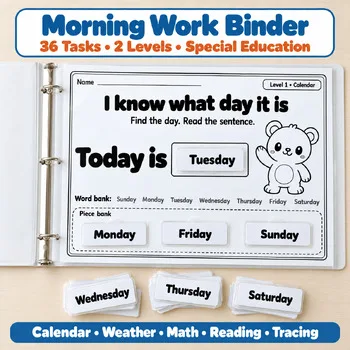
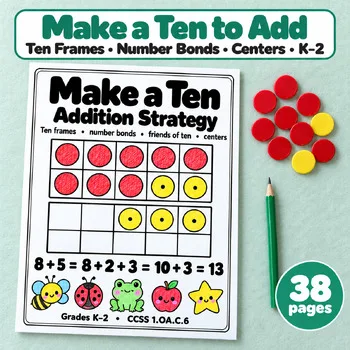
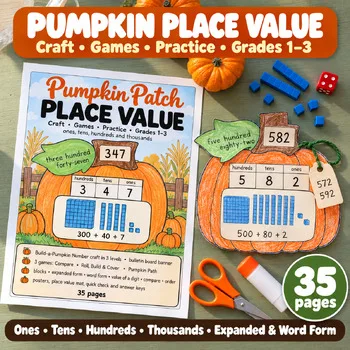
For low-tech follow-up once the screen goes off, these Activity Express printables pair with the boards above: project a page, let students answer on their boards, then hand out the sheet.
Frequently asked questions
Which digital whiteboard is completely free for teachers?
Excalidraw's editor is free with no account, Microsoft Whiteboard is free for schools on Microsoft 365 A1, and Canva Education and FigJam are free for K-12 teachers. Classroomscreen Basic and Whiteboard.fi have free versions too; Explain Everything and Miro have free plans with limits.
What can teachers use now that Google Jamboard is gone?
Google discontinued Jamboard in October 2024. Figma presents FigJam as the classroom board to move to, free for K-12 schools with Enterprise access. Whiteboard.fi and Explain Everything are also teacher-focused boards worth trying first.
Can students draw on the board without creating accounts?
Yes. Whiteboard.fi students join with a link, room code, or QR code and need no account. FigJam open sessions let guests collaborate for 24 hours without an account, Excalidraw needs no signup at all, and Explain Everything lets guests collaborate without accounts.
Which whiteboard is best for math lessons?
Whiteboard.fi is the strongest pick for math, because you watch every student's board live as they solve. Excalidraw is good for quick hand-drawn diagrams and number lines, and Microsoft Whiteboard adds inking, shapes, and templates for showing work.
Do these whiteboards work on Chromebooks and tablets?
Most are browser-based, so they work on Chromebooks: Whiteboard.fi, Miro, FigJam, Excalidraw, and Canva Whiteboards run in the browser. Explain Everything has apps for iPads, Chromebooks, and Android, and Microsoft Whiteboard runs on Windows, iOS, and the web.
Make a tool for teachers?
Built something teachers love? We keep these guides fresh, so send us a new tool, updated pricing or a featured spot request.
Request a listingDisclosure: no tool on this page paid to be included and we don't earn commissions from these links. Featured placements, if we ever offer them, will be clearly labeled "Sponsored". Details were checked on each provider's official website on November 11, 2026 and can change.