You explained long division three times today: once to the whole class, once to a small group, once more to an absent student. By the third time, your voice is tired and the explanation is shorter. A screen recording fixes that — explain it once, and the video does the repeating.
Teachers use screen recorders for flipped lessons, read-alouds with the text on screen, worksheet walkthroughs, and video feedback that says in two minutes what takes twenty minutes to type. The best tool depends on your device, your budget, and whether you want a quick one-take clip or a polished lesson with captions and zooms.
We checked every tool on its official website on November 11, 2026, for a PreK-6 fit, clear information about what is free, and a recorder a teacher can start without training. Where a site did not show a price, we say so.
Key takeaways
- ScreenPal is free with no watermark, but each recording stops at 15 minutes.
- Screencastify is the Chromebook pick, free for 10 videos up to 30 minutes each.
- Loom's free plan covers 25 videos of up to 5 minutes each, best for short feedback clips.
- Tella has no free plan, only a 7-day trial, Pro at $13 a month billed annually.
- OBS Studio, Kap, and ShareX are free and open source, with no paid plan.
Quick comparison
| # | Tool | Best for | Grades / audience | Pricing | Free plan |
|---|---|---|---|---|---|
| 1 | quick video feedback | Teachers, all grades | Freemium | Yes | |
| 2 | Chromebook classrooms | K-12, Chromebook classrooms | Freemium | Yes | |
| 3 | budget recording with no watermark | K-12 and higher education | Freemium | Yes | |
| 4 | polished explainers | Teachers, all grades | Paid | Trial only | |
| 5 | full lesson courses | Teachers, all grades | Free + paid | Yes | |
| 6 | free unlimited recording | Teachers, all grades | Free | Yes | |
| 7 | quick Mac clips and GIFs | Mac teachers, all grades | Free | Yes | |
| 8 | free Windows captures | Windows teachers, all grades | Free | Yes |
Make a tool for teachers?
Built something teachers love? We keep these guides fresh, so send us a new tool, updated pricing or a featured spot request.
Request a listingThe 8 best picks
- Pricing
- Freemium
- Free plan
- Yes
- Grades / audience
- Teachers, all grades
Loom is a screen and webcam recorder built for short async videos. You record your screen with a small camera bubble in the corner, then share it with a link instead of a meeting or a long email. Teachers use it for worksheet walkthroughs, video feedback, and two-minute parent answers. Viewers can react with an emoji and comment on the page.
What we like
- Records screen and camera bubble together, with system audio
- Transcriptions in more than 50 languages, plus closed captions
- Virtual backgrounds, noise suppression, and speaker notes while recording
- Drawing tool and mouse emphasis to point at details
Watch out for
- Free recordings stop at 5 minutes and top out at 720p.
- Business is priced per user per month, so the cost grows with every teacher.
Pricing: Starter is free; Business is $18 per user per month, and Business + AI is $24 per user per month.
- Pricing
- Freemium
- Free plan
- Yes
- Grades / audience
- K-12, Chromebook classrooms
Screencastify is a screen recorder that runs as a Chrome extension, for Chromebook and Google Workspace schools. Record a browser tab, your full screen, your webcam, or a combination; the video saves to Google Drive automatically. Teachers use it for flipped lessons, narrated slide walkthroughs, and video directions students replay at home. The Watch Page adds Interactive Questions to check understanding.
What we like
- Chrome extension in the browser, no software to install
- Records a browser tab, full screen, webcam, or a combination
- Saves videos to Google Drive automatically
- Interactive Questions and viewer tracking
Watch out for
- Free videos carry a Castify watermark, and the plan stops at 10 videos.
- Dollar prices were not shown on the official pricing page we checked — confirm the cost before budgeting.
Pricing: Free for up to 10 videos of up to 30 minutes each, with a Castify watermark; paid Starter and Pro plans add unlimited videos and longer recordings, and the pricing page we checked showed no dollar amounts.
- Pricing
- Freemium
- Free plan
- Yes
- Grades / audience
- K-12 and higher education
ScreenPal, formerly Screencast-O-Matic, is a screen and webcam recorder with a free plan: no sign-up, no watermark on recordings. Record screen, webcam, or both at once, draw as you talk, and save the video to your computer or ScreenPal's free hosting. Teachers use it for short lesson videos, narrated slideshows, and feedback clips.
What we like
- Free recorder with no sign-up and no watermark on recordings
- Records screen, webcam, or both, with picture-in-picture layout
- Draw and annotate while recording, and zoom in on details
- Free hosting with share links, folders, and privacy controls
Watch out for
- Recording computer system audio needs a paid plan, while microphone narration is free.
- The free plan limits how many videos you can host — check the current limits before building a library on it.
Pricing: Free; Deluxe Edu is $3 a month and Max Edu is $6 a month, both billed annually.
- Pricing
- Paid
- Free plan
- Trial only
- Grades / audience
- Teachers, all grades
Tella is a screen recorder with a full editor attached, making raw recordings look polished without a second round of editing. You record screen, camera, microphone, and system audio, and the editor adds layouts, zooms, captions, and sound cleanup. Screen and camera record as separate tracks, so you can resize the camera or change the layout later. Teachers use it for flipped lessons and tutorials that need a finished look.
What we like
- Records screen, camera, microphone, and system audio in the browser or desktop apps
- Screen and camera record as separate tracks you can rearrange after recording
- Editor with layouts, zoom effects, captions, and audio enhancement
- Exports in up to 4K, with clips up to 6 hours long
Watch out for
- The editor is part of the appeal — simple one-take recordings may feel like more tool than needed.
- Premium features such as custom branding cost more than the Pro plan.
Pricing: No free plan; a 7-day free trial of Pro, then Pro is $13 per user per month billed annually, or $26 billed monthly.
- Pricing
- Free + paid
- Free plan
- Yes
- Grades / audience
- Teachers, all grades
Camtasia, from TechSmith, pairs a screen recorder with a full video editor, for teachers building a whole course of lessons. It records screen, microphone, system audio, and webcam on separate tracks, and captures cursor movement to smooth or emphasize later. The editor adds captions, callouts, transitions, and royalty-free music, and finished videos can carry quizzes for LMS delivery. A free Editor is available, with watermarked exports.
What we like
- Records screen, microphone, system audio, and webcam on separate tracks
- Full editor with captions, callouts, transitions, and green screen
- Works offline as a desktop app for Windows and Mac
- Royalty-free music and stock assets included
Watch out for
- Free exports carry a watermark until you upgrade to a paid plan.
- It needs a fairly recent computer, with 8GB of RAM as the minimum.
Pricing: The Editor is free with watermarked exports; education pricing is $162.36 per user per year, and students pay $45 a year.
- Pricing
- Free
- Free plan
- Yes
- Grades / audience
- Teachers, all grades
OBS Studio is free, open-source software for video recording and live streaming, made by the OBS Project. It records screen, webcam, and audio with no time limit and no paid plan, and lets you build scenes from several sources at once — a slide window, a webcam, a text title. Teachers use it for lessons switching between a slideshow and a document camera, and for live-streamed school events. The trade-off is setup: scenes, sources, and audio take time to arrange.
What we like
- Free and open source, no paid plan, no recording time limit
- Scenes built from window captures, images, text, browser windows, webcams
- Audio mixer with noise gate, suppression, gain, and VST support
- Studio Mode previews a scene before it goes live; hotkeys control recording
Watch out for
- No built-in hosting or share link — save files locally and upload them yourself.
- Scenes and settings take time to learn first.
Pricing: Free and open source, with no paid plan.
- Pricing
- Free
- Free plan
- Yes
- Grades / audience
- Mac teachers, all grades
Kap is a small open-source screen recorder for Mac, built fast and simple. Pick an area of the screen, record, and export as a GIF, MP4, WebM, or APNG file, with optional audio. It highlights clicks and trims clip ends, enough for a short how-to video or a GIF showing one step. Teachers on Macs use it for quick demonstrations, like showing where to click in an app.
What we like
- Open-source recorder built with web technology, free to use
- Exports as GIF, MP4, WebM, or APNG, with optional audio
- Highlights clicks so viewers can follow the cursor
- Built-in trimming for cleaning up clip ends
Watch out for
- Mac only, with macOS 12 or later required.
- A focused recorder, so longer lessons with editing need a second tool.
Pricing: Free and open source, with no paid plan.
- Pricing
- Free
- Free plan
- Yes
- Grades / audience
- Windows teachers, all grades
ShareX is a free, open-source capture tool for Windows, best known for screenshots but with a screen recorder built in. Capture the full screen, a window, a region, or a scrolling page, then annotate, run text recognition, or upload to a destination of your choice. The screen recorder saves video or animated GIFs, and its settings cover video and audio options. Teachers on Windows use it for quick feedback clips, annotated screenshots, and short GIFs showing a single step.
What we like
- Free and open source for Windows, with no account and no ads
- Captures full screen, a window, a region, or a scrolling page
- Annotation tools, text recognition, and a built-in image editor
- Screen recording to video or GIF, plus a video trimmer
Watch out for
- Windows only; there is no Mac version.
- No built-in video hosting or share link — upload finished files yourself.
Pricing: Free and open source, with no paid plan.
How we chose
We started from tools PreK–6 teachers actually use and checked every one against its official website, pricing page and feature pages on November 11, 2026. We kept tools that fit elementary classrooms, noted whether a free plan exists, and wrote down honest limitations next to the strengths. Nobody paid to be included, and we don't use affiliate links on this page.
- Fit for PreK–6 classrooms, special education or homeschool
- Clear information on the official site about what the tool does and who it is for
- Free plan or free-for-teachers option noted where one exists
- Still active and maintained, with rebrands noted
How to choose the right tool
Start with your device. Chromebook classrooms should pick a browser recorder like Screencastify, Mac teachers can use Kap, and Windows teachers get the most from ShareX or OBS Studio.
Decide video length before you pick a free plan. Loom stops free recordings at 5 minutes, ScreenPal at 15, and Screencastify at 30 minutes per video. Lessons past 20 minutes will frustrate you on a 5-minute free plan.
Check where the video lives after recording. Loom, Tella, and ScreenPal host the video and give you a share link, while OBS Studio, Kap, and ShareX save a file you upload yourself. If your school blocks video hosting, a local file for Google Drive or your LMS is safer.
Think about who watches. Young students need big, clear visuals and a slow pace, so a tool with zoom and annotation helps them follow along. Parents watching feedback videos need a simple link that opens without an account — Loom and ScreenPal offer that.
Try the free option for a week before paying. Record three real lessons, share them, and see where you hit a limit: the watermark, the time cap, or the video count. The first limit you hit tells you which paid plan is worth buying.
Keep one backup recorder ready. If your main tool is down or your school laptop changes, a free fallback such as OBS Studio or ShareX means the lesson still gets recorded.
Best pick by situation
- You teach on Chromebooks and live in Google Drive: Screencastify — it runs in Chrome and saves videos to Drive automatically
- You want a free recorder with no watermark: ScreenPal — the free plan has no watermark and needs no sign-up
- You need to send fast video feedback to students or parents: Loom — short screen-and-camera clips share by link in seconds
- You want polished explainers with zooms and captions: Tella — the editor adds layouts, zooms, and captions after recording
- You are building a full flipped-classroom course: Camtasia — recorder plus full editor, captions, and education pricing
- You want a free recorder with no time limits: OBS Studio — free and open source, with unlimited recording and scenes
Pair it with printables
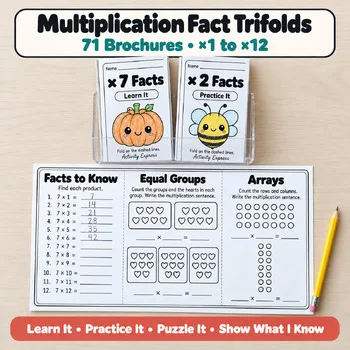
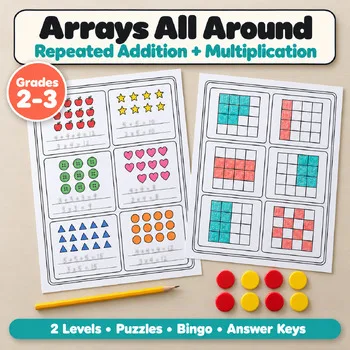
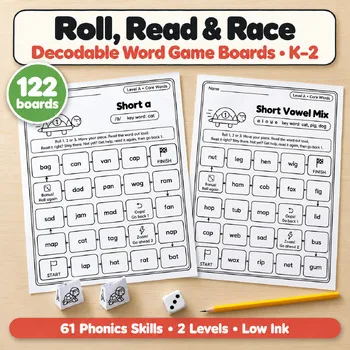
For the practice that follows a recorded lesson, these Activity Express printables pair with the screen recorders above.
Frequently asked questions
Which screen recorder is completely free for teachers?
OBS Studio, Kap, and ShareX are free and open source with no paid plan. ScreenPal and Screencastify also have free plans, and Loom's Starter plan is free, but all three limit length or video count.
What is the best screen recorder for Chromebook classrooms?
Screencastify: it runs as a Chrome extension, nothing to install, saves videos to Google Drive automatically, and works with Google Classroom. Its free plan covers 10 videos of up to 30 minutes each.
Can I record my screen and my webcam at the same time?
Yes — Loom, Screencastify, ScreenPal, Tella, Camtasia, and OBS Studio all record screen and webcam together, usually picture-in-picture. Tella and Camtasia record them as separate tracks, so you can resize the camera afterward.
How long can I record for free?
It depends. Loom's free plan stops at 5 minutes per video, ScreenPal's at 15, and Screencastify's at 30. OBS Studio, Kap, and ShareX have no time limit, and Tella's trial allows clips up to 6 hours long.
Do I need to install software to record my screen?
Not always — Screencastify runs in Chrome and Tella has a web recorder, so both work without a download. Loom, ScreenPal, Camtasia, OBS Studio, Kap, and ShareX need a desktop app or browser extension first.
Make a tool for teachers?
Built something teachers love? We keep these guides fresh, so send us a new tool, updated pricing or a featured spot request.
Request a listingDisclosure: no tool on this page paid to be included and we don't earn commissions from these links. Featured placements, if we ever offer them, will be clearly labeled "Sponsored". Details were checked on each provider's official website on November 11, 2026 and can change.