It is 8:05 in the morning, and your laptop is already doing three jobs at once: the attendance tab, the worksheet PDF, and the parent email you started last night. A good Chrome extension does not add a fourth job. It quietly takes one of those three and makes it smaller — it marks the worksheet, checks the email, or reads the passage aloud while you take attendance.
This list collects Chrome extensions that earn their place in a teacher's browser. Every one here was checked on its official website on November 13, 2026, looking for a real classroom use, a free way to start, and tools that work on Chromebooks as well as desktops. Some are free, some are paid, and two are built by small independent makers.
Install one at a time and use it for a week before adding the next. An extension you never open is just another icon in the toolbar, and a browser full of them slows the laptop down. Start with the problem that costs you the most time.
Key takeaways
- Kami's free plan covers 10+ annotation tools; the Teacher Plan is $149.
- Grammarly is free for basic checks; Pro is $12 a month billed annually.
- Mote's free plan allows 20 voice recordings a month; Unlimited is listed at $99.
- Equatio's paid plans start at $2.75 a seat, with a free version available.
- Wakelet is free for 3 collections; the Education Group plan is $160 a year for a teacher and 30 students.
Quick comparison
| # | Tool | Best for | Grades / audience | Pricing | Free plan |
|---|---|---|---|---|---|
| 1 | marking up PDFs and worksheets | Teachers and students, K–12 | Free + paid | Yes | |
| 2 | clean, professional writing everywhere | Teachers and students, all ages | Free + paid | Yes | |
| 3 | voice feedback and read-aloud support | K–12, SPED and ELL | Free + paid | Yes | |
| 4 | typing and speaking math | K–12 math and STEM | Free + paid | Yes | |
| 5 | collecting links into one page | Teachers and students, all grades | Free + paid | Yes | |
| 6 | quick notes that sync everywhere | Teachers and students | Free | Yes | |
| 7 | a personal avatar for your classroom | Teachers and students | Free | Yes | |
| 8 | seeing how a draft was written | Teachers, upper elementary and up | Paid | Trial only |
Make a tool for teachers?
Built something teachers love? We keep these guides fresh, so send us a new tool, updated pricing or a featured spot request.
Request a listingThe 8 best picks
- Pricing
- Free + paid
- Free plan
- Yes
- Grades / audience
- Teachers and students, K–12
Kami turns any document into a workspace students can write on. A teacher opens a PDF or worksheet in the browser and marks it up with text, drawing, highlights, shapes, and voice or video comments, and students complete the same file and send it back. It works with Google Drive and Google Classroom, so the marked-up work lands where the class already lives.
What we like
- 10+ annotation tools on the free Basic plan, including drawing, highlighting, and shapes
- Read Aloud and translation in over 100 languages for accessibility
- AI auto-grading and question generation for assessments
- Class View shows every student's work in one place
Watch out for
- The free plan covers 10+ tools, not the full set of 40+.
- School-wide use needs the School or District plan, priced by quote.
Pricing: Free Basic plan with 10+ tools; Teacher Plan is $149, with a 30-day free trial for new teacher accounts.
- Pricing
- Free + paid
- Free plan
- Yes
- Grades / audience
- Teachers and students, all ages
Grammarly checks spelling, grammar, punctuation, and tone as you type in the browser — in email, Google Docs, and web forms. Teachers use it to polish parent emails, lesson plans, and written feedback, and students get suggestions on their own writing as they type. Grammarly is now part of Superhuman, so the product may change over time.
What we like
- Free plan checks spelling and grammar and shows your tone
- Pro rewrites full sentences and adjusts tone for the audience
- Works across apps and tabs in Chrome
- 100 AI prompts on Free, 2,000 on Pro
Watch out for
- The free plan covers mistakes and tone, not full-sentence rewrites.
- Grammarly is now part of Superhuman, so the product may change.
Pricing: Free plan is $0; Pro is $12 a month per member billed annually ($30 billed monthly).
- Pricing
- Free + paid
- Free plan
- Yes
- Grades / audience
- K–12, SPED and ELL
Mote adds voice notes and read-aloud tools to Google Workspace. Teachers record voice comments in Docs, Slides, Classroom, and Gmail, and students can hear any web page or Google Form read aloud. It also translates text and builds vocabulary practice, which makes it useful for English learners and students with reading plans.
What we like
- Chrome Extension sidebar opens Mote tools on any webpage
- Voice notes in Docs, Slides, Classroom, and Gmail
- Read Aloud in Google Forms, including Locked Mode
- Translation of web text and voice-note transcripts
- Mote Vocab with flash cards and matching quizzes
Watch out for
- Free recordings are limited to 20 a month and 1 minute each.
- Full features need Unlimited; school pricing is by quote.
Pricing: Free plan with 20 voice recordings a month; Mote Unlimited is listed at $99.
- Pricing
- Free + paid
- Free plan
- Yes
- Grades / audience
- K–12 math and STEM
Equatio lets students create math by speaking, typing, drawing, or handwriting it. It turns spoken equations into written math, reads equations aloud with alt text for screen readers, and adds Desmos graphing and scientific calculators to the toolbar. The maker, Texthelp, is now called Everway.
What we like
- Speech input turns spoken equations into written math
- Equation editor with prediction and LaTeX support
- Handwriting recognition from a mouse or touchscreen
- Desmos graph and scientific calculators built in
- Screenshot reader turns any equation into readable math
Watch out for
- Most features are in the paid plan; the free version is limited.
- Texthelp is now called Everway, so the brand name on the site has changed.
Pricing: Paid plans from $2.75 per seat; a free version is available.
- Pricing
- Free + paid
- Free plan
- Yes
- Grades / audience
- Teachers and students, all grades
Wakelet gathers links, files, videos, images, PDFs, and notes into visual collections. A teacher builds a collection for a unit, a newsletter, or a class portfolio, then shares it with one link. Students can add to a shared collection too, so a class research project can grow in one place.
What we like
- Save links, files, videos, images, PDFs, and notes in collections
- Invite others to contribute to a collection
- Publish collections to a public profile or keep them private
- Education Group plan adds shared workspaces, portfolios, and activities
Watch out for
- Free Starter allows only 3 collections and 250 items.
- Student portfolios need the Education Group plan.
Pricing: Free Starter plan (3 collections, 250 items); Pro is $11.99 a month or $89.99 a year; Education Group is $160 a year for 1 teacher and 30 students.
- Pricing
- Free
- Free plan
- Yes
- Grades / audience
- Teachers and students
Google Keep is a free notes app from Google. Teachers jot down ideas, make checklists, and save photos, drawings, and voice notes, and everything syncs across phone, tablet, and computer. Notes can be shared so several people edit the same note in real time.
What we like
- Create notes, lists, photos, drawings, and audio notes
- Share notes so several people can edit in real time
- Opens from the side panel in Docs, Slides, and Gmail
- Share notes with a family group
Watch out for
- No folders or notebooks, so a large note collection gets messy.
- Keep needs a Google account.
Pricing: Free with a Google account; no separate price is listed on the official site.
- Pricing
- Free
- Free plan
- Yes
- Grades / audience
- Teachers and students
Bitmoji lets you build a cartoon avatar of yourself and use it anywhere — in slides, emails, and classroom displays. Teachers use Bitmoji scenes to make virtual classrooms, headers, and feedback more personal, and the Chrome extension drops Bitmoji images into web pages.
What we like
- Create a personal Bitmoji avatar
- Use your avatar in any app
- Link to Snapchat for Friendmoji with friends
- Bitmoji for Chrome adds avatars to web pages
Watch out for
- It is a Snapchat product, so some schools block it.
- Avatars are for fun, not for formal documents.
Pricing: Free; no paid plan is listed on the official site.
- Pricing
- Paid
- Free plan
- Trial only
- Grades / audience
- Teachers, upper elementary and up
Draftback replays the revision history of a Google Doc like a movie. A teacher watches a student's writing unfold — every addition, deletion, and paste — which shows whether the work was written over time or pasted in at once. It works on any Doc you can edit, including assignments made through Google Classroom.
What we like
- Play, pause, and rewind a Doc's revision history
- Document summary with writing patterns and time spent
- Works with Google Classroom docs
- No document data is stored on Draftback's servers
Watch out for
- Playback needs Edit permission on the document.
- It shows the writing process, not a verdict — teachers still judge the work themselves.
Pricing: Subscription-based, with a free trial; the dollar price is not stated on the official site. Volume pricing for schools is by quote.
How we chose
We started from tools PreK–6 teachers actually use and checked every one against its official website, pricing page and feature pages on November 13, 2026. We kept tools that fit elementary classrooms, noted whether a free plan exists, and wrote down honest limitations next to the strengths. Nobody paid to be included, and we don't use affiliate links on this page.
- Fit for PreK–6 classrooms, special education or homeschool
- Clear information on the official site about what the tool does and who it is for
- Free plan or free-for-teachers option noted where one exists
- Still active and maintained, with rebrands noted
How to choose the right tool
Start with the time sink. If grading written work eats your evenings, start with Kami or Draftback. If parent emails take forever, start with Grammarly. One extension that solves a real problem beats five that sit unused.
Check what is actually free before you plan a lesson around it. Kami, Grammarly, Mote, Wakelet, Google Keep, and Bitmoji all start free, Equatio has a free version, and Draftback needs a subscription after the trial. Free plans cap things — Kami's free plan covers 10+ tools, Mote's allows 20 recordings a month, Wakelet's allows 3 collections.
Ask your school's IT team before you install. Some districts allowlist extensions, and Bitmoji links to Snapchat, which some schools block. Kami, Mote, and Equatio all offer domain-wide deployment, so IT can install them for everyone at once.
Test with one class first. Install the extension, use it with one group for a week, and watch where students get stuck. A tool that needs ten minutes of setup per lesson is not saving time yet.
Keep the toolbar short. A browser crowded with extensions runs slower, and every extra icon is one more thing to explain to a substitute teacher. If you have not opened an extension in a month, remove it.
Keep a paper backup for the day the Wi-Fi drops. Extensions need the internet, so a printed worksheet or a notebook routine keeps the lesson moving when the connection does not.
Best pick by situation
- You hand out PDFs and want students to write on them: Kami — turns any PDF into an annotatable, shareable worksheet
- You want parent emails to read cleanly: Grammarly — checks spelling, grammar, and tone as you type
- A student needs to hear the worksheet read aloud: Mote — reads any page or Google Form aloud, with translation
- Your math students struggle to type equations: Equatio — lets them speak, type, or draw math instead
- You need one link that holds a whole unit's resources: Wakelet — gathers links, files, and videos into one shared collection
- You want to know if a draft was written or pasted: Draftback — replays a Google Doc's revision history like a movie
- You want your slides and feedback to feel personal: Bitmoji — adds your own cartoon avatar to any page or slide
Pair it with printables
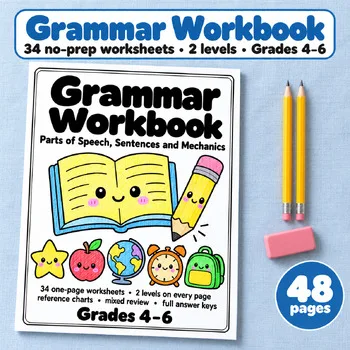
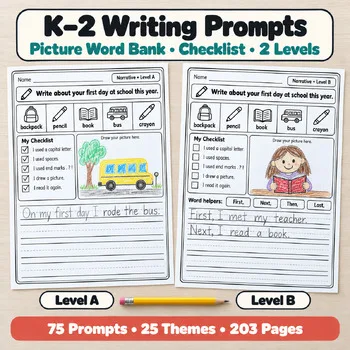
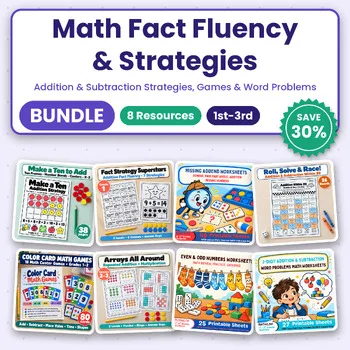
For the same skills without a screen, these Activity Express printables pair naturally with the extensions above.
Frequently asked questions
Are Chrome extensions free for teachers?
Most of these start free: Kami, Grammarly, Mote, Wakelet, Google Keep, and Bitmoji all have free plans, and Equatio has a free version. Draftback needs a subscription after its free trial. Paid plans add more tools, more recordings, or more collections.
Do these extensions work on Chromebooks?
Yes. Chrome extensions run on Chromebooks as well as on desktop Chrome. Mote and Kami are built for Chromebook classrooms, and Equatio, Wakelet, and Google Keep all work in the Chrome browser on any device.
Which extension is best for grading writing?
Draftback shows how a draft was written, minute by minute, which helps when you need to see the process. Grammarly checks the writing itself for spelling, grammar, and tone. Kami sits between them: it lets you mark up a PDF with text, voice, and video comments.
Can students use these extensions too?
Kami, Mote, Equatio, and Wakelet are all made for student use as well as teacher use, and Bitmoji and Google Keep work for anyone with an account. Check your school's policy first, especially for Bitmoji, which links to Snapchat.
What if my school blocks extensions?
Ask your IT team to allowlist the ones you need. Kami, Mote, and Equatio offer domain-wide deployment through the Google Admin console, so IT can install them for every teacher and student at once instead of one browser at a time.
Make a tool for teachers?
Built something teachers love? We keep these guides fresh, so send us a new tool, updated pricing or a featured spot request.
Request a listingDisclosure: no tool on this page paid to be included and we don't earn commissions from these links. Featured placements, if we ever offer them, will be clearly labeled "Sponsored". Details were checked on each provider's official website on November 13, 2026 and can change.