Elementary students now take online tests, write on Chromebooks and type research notes long before anyone formally teaches them where the home row is. Hunting and pecking eventually slows down every assignment that lives on a device. This list is for K-6 classroom teachers, computer and library teachers, and homeschool parents who want a structured way to build keyboarding skills without building the course themselves.
We checked every program on its official website this week: feature pages, school pages and pricing pages where they exist. We noted which ones are genuinely free, which ones are free with a paid school upgrade, and which ones are priced per student or per family. We left out programs we could not confirm are still open to new users, and we did not include ratings, user counts or review scores.
A practical note before you choose: short, frequent practice beats long sessions. Ten to fifteen minutes a few times a week, with someone watching posture and finger placement, usually does more than a single long lab period.
Key takeaways
- Best free all-round program for a whole school: TypingClub
- Best free teacher portal with extra digital literacy content: Typing.com
- Best for K-2 beginners who need motor-skill warm-ups: TypeTastic
- Best paid curriculum built for K-5 schools: Keyboarding Without Tears
- Best for homeschool families who want parent reporting: Typesy
Quick comparison
| # | Tool | Best for | Grades / audience | Pricing | Free plan |
|---|---|---|---|---|---|
| 1 | free, structured keyboarding for whole schools | K-12, plus Jungle Junior for young learners | Free + paid | Yes | |
| 2 | free teacher portal with extra tech skills | K-12, schools and homeschool | Free + paid | Yes | |
| 3 | K-2 beginners and pre-readers | K-12, with separate K-2 and upper elementary activities | Free + paid | Yes | |
| 4 | schools wanting a K-5 keyboarding curriculum | Kindergarten-5th grade | School license | Trial only | |
| 5 | districts needing rostering and per-student licenses | K-12 | School license | Trial only | |
| 6 | motivating speed practice once keys are learned | Upper elementary and up (no age range stated) | Free | Yes | |
| 7 | homeschool families with several kids | Ages 4 and up; homeschool, schools and adults | Paid | Trial only | |
| 8 | families wanting a low-cost home license | All ages; families and schools | Paid | Trial only |
Make a tool for teachers?
Built something teachers love? We keep these guides fresh, so send us a new tool, updated pricing or a featured spot request.
Request a listingThe 8 best picks
- Pricing
- Free + paid
- Free plan
- Yes
- Grades / audience
- K-12, plus Jungle Junior for young learners
TypingClub is a browser-based typing course that moves students through short game-style lessons, earning stars and badges as they go. Teachers often run it as a weekly station or lab routine: students log in, pick up where they left off, and work through the next few lessons while the hand guide shows exactly which finger to use. No account is required to try it, so it also works for a quick first lesson at home.
What we like
- On-screen hand posture guide that shows the correct finger for every key
- Optional voice-over that reads each word aloud, plus typing playback to replay past attempts
- Several lesson plans, including one-hand typing, Dvorak and lessons in Spanish, French and German
- School tools on edclub with Clever, ClassLink and Google Classroom rostering, reports and a free iPad app
Watch out for
- Premium school features such as custom content and district management are part of the paid School Edition after the trial
- School setup happens on the separate edclub site, which can confuse first-time users
Pricing: The site says TypingClub is free for individuals and schools, with an optional paid School Edition; a free school account includes a 60-day trial of premium features.
- Pricing
- Free + paid
- Free plan
- Yes
- Grades / audience
- K-12, schools and homeschool
Typing.com pairs adaptive keyboarding lessons with units on digital citizenship, coding and basic computer skills. A teacher sets up classes in the free teacher portal, assigns lessons or timed tests, and watches progress update in real time. Its cross-curricular practice has students type grade-level content from other subjects.
What we like
- Free teacher portal with unlimited students, classes, teachers and schools
- Custom lessons, timed tests and automatic progress reports
- Digital citizenship, AI literacy and beginner HTML, CSS and JavaScript lessons alongside typing
- Simulated word processing, spreadsheet and presentation apps with auto-grading
Watch out for
- PLUS Edition pricing and exact feature split were not shown on the homepage
- Typing.com has acquired EduTyping, which is closed to new signups, so former EduTyping schools may be pointed here
Pricing: The core program and teacher portal are free; a paid PLUS Edition is offered, but its price was not listed on the pages we checked.
- Pricing
- Free + paid
- Free plan
- Yes
- Grades / audience
- K-12, with separate K-2 and upper elementary activities
TypeTastic starts earlier than most programs, with introductory games and motor-skills training before formal touch typing begins. A kindergarten or first grade teacher can use the visual keyboard games to teach where letters live on the keyboard, then move students into touch typing, numbers and symbols, and timed tests as they grow. Activities are grouped by age, so younger and older students get different material.
What we like
- Curriculum modules that run from introductory games and motor-skills training to fluency and timed tests
- Visualized keyboard, instant feedback and a step-by-step progression with smart review
- Separate activity sets for K-2, upper elementary and middle or high school
- Additional K-5 digital citizenship and computer science activities and grade 3-5 AI literacy
Watch out for
- School Edition pricing was not listed on the site
- Sales are handled by a separate US reseller, so quotes come from a different company name than the app
Pricing: The site describes TypeTastic as free and ad-free, with a School Edition for progress tracking and rostering that offers a free trial; school pricing is handled by sales.
Keyboarding Without Tears
Best for: schools wanting a K-5 keyboarding curriculum
- Pricing
- School license
- Free plan
- Trial only
- Grades / audience
- Kindergarten-5th grade
Keyboarding Without Tears is a game-based keyboarding curriculum from Learning Without Tears, the company behind Handwriting Without Tears. It uses a row-based method with color-coded keys so young students learn finger-key associations step by step, and lessons connect to letter recognition and sight words. Schools usually adopt it by grade level so each year builds on the last.
What we like
- Patented row-based method with color-coded keys
- Grade-level lessons designed for students to work independently with embedded support
- Digital citizenship instruction and ELA connections such as sight words and phonemic awareness
- Free grade-level sample lessons to try before buying
Watch out for
- Pricing requires a quote
- Stops at 5th grade, so 6th grade needs a different program
Pricing: Licenses are sold by grade level and quoted for each school or district; no fixed prices are listed.
Typing Agent
Best for: districts needing rostering and per-student licenses
- Pricing
- School license
- Free plan
- Trial only
- Grades / audience
- K-12
Typing Agent is a K-12 typing platform built for school and district purchase, with adaptive lessons, arcade games and reward systems that keep students practicing. Technology teachers use it as the main keyboarding course and pull reports on speed, accuracy and problem keys for each class. It also includes coding practice, writing workshop tools and story-based digital citizenship missions.
What we like
- Adaptive practice that adjusts to each student's speed, accuracy and problem keys
- Roster sync with Clever, ClassLink, Google Classroom, Microsoft and SFTP upload
- Accessibility options including read-aloud audio, high contrast, one-handed typing and Spanish instructions
- Reports on speed, accuracy, progress, problem keys and participation
Watch out for
- No free classroom tier is described
- A reused license does not keep the previous student's data
Pricing: The pricing page lists volume-based licenses from $1 to $8.77 per student per year, with up to 15% off multi-year purchases and a free demo.
- Pricing
- Free
- Free plan
- Yes
- Grades / audience
- Upper elementary and up (no age range stated)
Nitro Type turns typing practice into real-time car races against other typists, where faster and more accurate typing moves your car ahead. It works best as a reward or warm-up for upper elementary students who already know the keyboard. Teachers can set up a free teacher account to see who is racing, who is drifting off task, and how much time students spend on the track.
What we like
- Live races for up to five players, with options to race friends
- Students earn new cars and can track their scores
- Free teacher account to monitor who is racing and who needs guidance
- Guest racing for a quick try without signing up
Watch out for
- Races are with players online, so review it with your school's online-safety expectations in mind
- Its teacher portal is separate and cannot connect to a Typing.com teacher account
Pricing: The site says racing is free, and the teacher account is also free.
- Pricing
- Paid
- Free plan
- Trial only
- Grades / audience
- Ages 4 and up; homeschool, schools and adults
Typesy is a keyboarding program with versions for schools, homeschool families and adults. The homeschool edition gives a parent an admin account to assign courses, set word lists, create auto-graded tests and see live reports, while each child works through 3D animated lessons, video lessons and unlockable games. There is a separate K-2 keyboarding course for ages 4 to 8 and a grade 2-8 course for older students.
What we like
- Placement test that measures finger placement, speed and accuracy
- Parent tools for assigning curricula and word lists, auto-graded tests and live reporting
- Story-based animated lessons, video lessons and 20 games that unlock as students progress
- Works on Windows, Mac, iPad, Android tablets and Chromebooks with progress synced
Watch out for
- Family plan covers only two student accounts; larger families need the Big Family or Co-op plan
- School pricing was not shown on the pages we checked
Pricing: Homeschool plans start with a Family plan for one parent and two students at $72 per year billed annually or $10 per month, with a 30-day free trial.
- Pricing
- Paid
- Free plan
- Trial only
- Grades / audience
- All ages; families and schools
Typing Pal is a typing course with around 100 step-by-step exercises, tests after each step, and practice texts grouped by age. A smart algorithm recommends activities that target the keys a learner finds hardest, and games such as Cosmik Ball add variety. Families can use the Home Edition to give each child a profile, while schools can buy a School Edition with account management.
What we like
- Adaptive recommendations that target each learner's hardest keys
- Three learning environments with coaches and age-suited practice texts
- More than 100 badges, games and a certificate of achievement
- Runs on Windows, Chromebook, Mac and iPad
Watch out for
- No grade levels are listed, so check the practice texts suit young students
- School pricing requires a quote
Pricing: The pricing page lists a limited 30-day free trial, a Personal Edition at $29.95 per year and a Home Edition with three profiles at $39.95 per year; the School Edition starts at 25 users by quote.
How we chose
We started from tools PreK–6 teachers actually use and checked every one against its official website, pricing page and feature pages on October 29, 2026. We kept tools that fit elementary classrooms, noted whether a free plan exists, and wrote down honest limitations next to the strengths. Nobody paid to be included, and we don't use affiliate links on this page.
- Fit for PreK–6 classrooms, special education or homeschool
- Clear information on the official site about what the tool does and who it is for
- Free plan or free-for-teachers option noted where one exists
- Still active and maintained, with rebrands noted
How to choose the right tool
Start with your youngest students. If you teach K-1, look for a program that teaches where keys are before it expects touch typing; TypeTastic and Keyboarding Without Tears both start at that level, and TypingClub has its Jungle Junior track.
Decide whether you need a free tool or a curriculum. TypingClub, Typing.com and TypeTastic can run a whole year for free. Keyboarding Without Tears and Typing Agent are purchased programs with a clearer sequence and school support.
Check how students will log in. If your school uses Clever, ClassLink or Google Classroom, confirm rostering before launch so you are not typing in passwords for 25 seven-year-olds.
Look at what the teacher sees. Free dashboards on Typing.com and Nitro Type show progress and time on task; deeper reports and custom content are often in paid school editions.
Use racing games as a reward, not the main course. Nitro Type motivates speed, but finger placement is taught in the structured programs.
For homeschool, compare family plans. Typesy and Typing Pal both price by number of profiles, so count your kids before choosing a tier.
Best pick by situation
- Your school has no budget and you need every K-5 class typing by next month: TypingClub — the core program is free for individuals and schools
- You want typing lessons plus digital citizenship and coding in one free portal: Typing.com — its free teacher portal covers keyboarding and extra tech-literacy units
- Your kindergartners have never used a keyboard and cannot read instructions yet: TypeTastic — it starts with visual keyboard games and motor-skill activities
- Your district wants a K-5 curriculum with a set scope and sequence: Keyboarding Without Tears — it is a grade-level licensed program built only for K-5
- Your fifth graders know the keys and need a reason to practice speed: Nitro Type — free real-time races add friendly competition
- You homeschool three kids of different ages and want one family plan: Typesy — family plans include parent accounts, reports and age-based courses
- Your district needs rostering through Clever or ClassLink with a per-student license: Typing Agent — it syncs rosters and prices licenses per student by volume
Pair it with printables
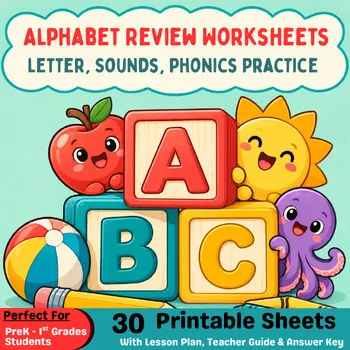
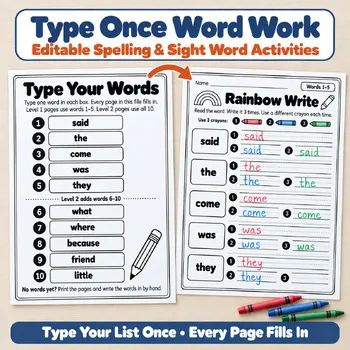
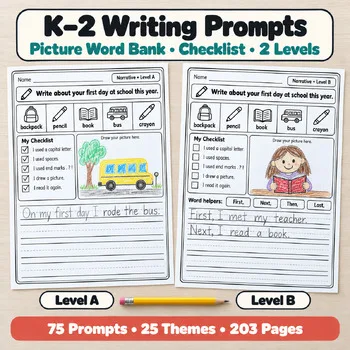
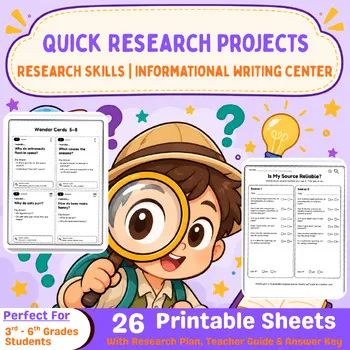
When devices are out or you want students writing words they will later type, these Activity Express printables give letter, spelling and writing practice on paper.
Frequently asked questions
What age should children start learning to type?
Several programs on this list start in kindergarten. TypeTastic and Keyboarding Without Tears include K-level activities, and Typesy offers a keyboarding course for ages 4 to 8. Early lessons focus on finding keys and simple finger habits rather than speed.
What is the best free typing program for elementary school?
TypingClub and Typing.com are both free for schools, and TypeTastic describes itself as free and ad-free. TypingClub and TypeTastic offer paid school editions with extra management tools, and Typing.com has a paid PLUS Edition.
Is Nitro Type good for teaching typing?
Nitro Type is a free racing game that builds speed and motivation. It does not teach finger placement step by step, so it works best after students have learned the keyboard in a structured program.
Do any typing programs work with Clever or Google Classroom?
Yes. TypingClub's school tools support Clever, ClassLink and Google Classroom rostering, and Typing Agent syncs with Clever, ClassLink, Google Classroom and Microsoft. Check the current integration list with each vendor before you buy.
Which typing program is best for homeschool?
Typesy has homeschool plans with parent accounts, reports and a 30-day trial, and Typing Pal has a Home Edition with three profiles. Free options such as TypingClub and Typing.com also work at home without a school account.
Make a tool for teachers?
Built something teachers love? We keep these guides fresh, so send us a new tool, updated pricing or a featured spot request.
Request a listingDisclosure: no tool on this page paid to be included and we don't earn commissions from these links. Featured placements, if we ever offer them, will be clearly labeled "Sponsored". Details were checked on each provider's official website on October 29, 2026 and can change.